
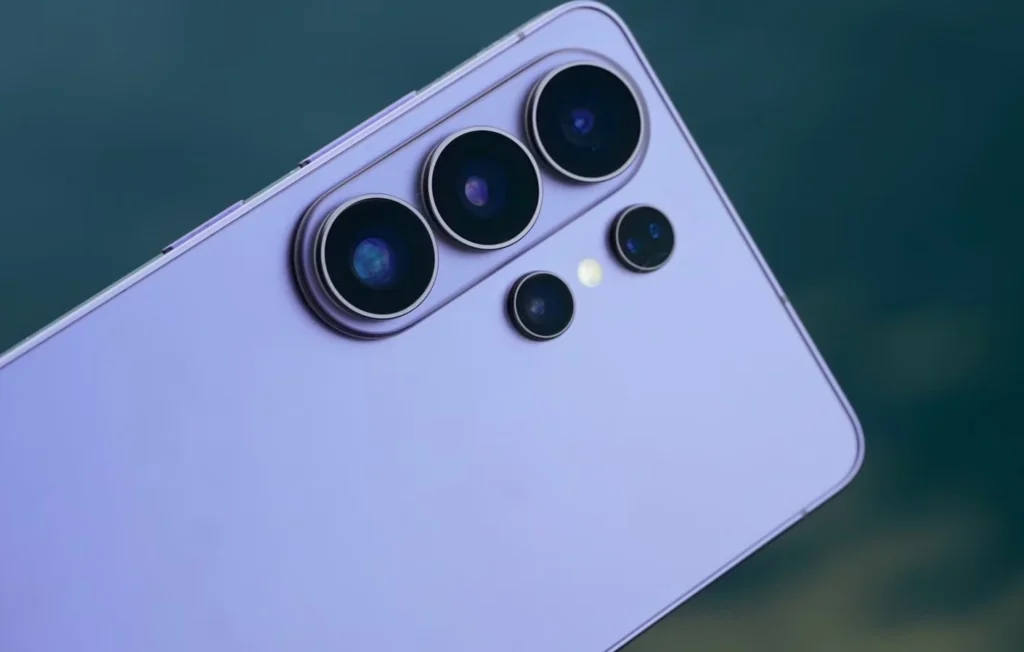
The Samsung Galaxy S26 Ultra offers an advanced camera system, but its full potential goes beyond the default shooting settings. Several built-in tools can help users capture better portraits, photograph night scenes and record professional-looking videos.
While Galaxy AI provides image enhancement and editing tools, many camera features work without artificial intelligence. Some advanced options require Samsung’s free Camera Assistant and Expert RAW apps, available through the Galaxy Store.
Here are five camera features worth exploring on the Galaxy S26 Ultra.
1. Capture Photos at 24 Megapixels
The Galaxy S26 Ultra features a 200-megapixel main camera, a 50-megapixel ultrawide lens and two telephoto cameras with 50-megapixel and 10-megapixel sensors. However, the Camera app uses 12 megapixels as its default photo resolution.
Users can select 50-megapixel or 200-megapixel photography through the resolution menu in the camera viewfinder. Higher resolutions capture more detail but require additional storage.
A 200-megapixel image typically occupies 25MB to 40MB. By comparison, a 12-megapixel photo generally uses around 3MB to 5MB.
The 200-megapixel option works particularly well in good lighting. It suits stationary subjects and photographs that may require substantial cropping.
For everyday photography, 24-megapixel images provide a useful middle ground. They capture more detail without the storage demands of full-resolution photographs.
To activate the feature, install Camera Assistant and open the Camera app’s settings. Select Camera Assistant and enable 24 MP in Photo Mode under the 24 MP Resolution menu.
The option should then appear among the available resolutions in the viewfinder. Samsung notes that zoom and other camera settings may still affect the final resolution.
Users can also save storage by selecting HEIF instead of JPEG. A 24-megapixel HEIF image can occupy roughly the same space as a 12-megapixel JPEG, according to the source article.
2. Improve Portrait Lighting With Virtual Reflector
Portrait photography can become difficult when bright backgrounds leave a subject’s face in shadow.
The Galaxy S26 Ultra’s main camera features an f/1.4 aperture, allowing more light to reach its sensor than its predecessor. However, natural lighting conditions may still affect portrait quality.
Samsung’s Virtual Reflector feature offers another way to improve facial lighting. It adds adjustable virtual light to a subject’s face.
Users can access the tool through Expert RAW rather than the standard Camera app. Open Expert RAW, tap the flask-shaped Labs icon in the lower-right corner and select Virtual Reflector.
The feature offers two lighting options:
- Silver: Provides neutral lighting.
- Gold: Creates a warmer lighting effect.
Users can also adjust the light’s intensity and direction.
Testing these settings before a photography session can help users identify the most suitable lighting for different portrait conditions.
3. Explore the Updated Night Mode
The Galaxy S26 Ultra’s improved telephoto camera is designed to capture more light than its predecessor. This can help users take photographs and record videos in darker environments.
Samsung has also changed how Night mode works in One UI 8.5. The feature now operates within the standard Photo mode rather than appearing as a separate shooting mode by default.
Users can find a moon icon in the viewfinder to access Night mode settings. The available options include Auto and Max, while Off disables the feature.
Anthropic Releases Mythos 5.2 and Fable 5.2 With Improved AI Capabilities
Max mode may help in particularly dark environments where longer exposure times are useful.
Users who prefer a dedicated Night mode can restore it through Camera Assistant. Open the app’s settings, select Additional Modes and enable Night. The feature will then appear under the More menu in the Camera app.
For night photography, Expert RAW also offers Astrophotography mode. It is designed to capture stars but can also photograph other stationary scenes.
Using a tripod or stable surface can help prevent camera movement during longer exposures.
4. Keep Action Videos Stable With Horizontal Lock
Recording videos while walking, running or moving through crowded places can produce shaky footage.
Samsung’s Super Steady feature reduces camera movement. The Galaxy S26 Ultra also introduces Horizontal Lock, which helps keep the horizon level even when users tilt or rotate the phone.
Demonstrations show the phone rotating through a full 360 degrees while the resulting footage remains largely level.
The feature can help when recording concerts, following children or pets, and filming other activities involving frequent movement.
To activate Horizontal Lock, open the Camera app and switch to Video mode. Tap the Super Steady icon and select Horizontal Lock.
The phone also offers My FanCam, described in the source as a feature associated with Android 17 and One UI 9. It uses Galaxy AI to keep a selected person centred in recorded footage.
However, My FanCam works differently from Horizontal Lock. It processes video in the Gallery app after recording rather than tracking the subject live.
5. Use Log Video and Cinematic LUTs
The Galaxy S26 Ultra also provides advanced video tools for users who want greater control over colour and image quality.
Log recording preserves additional information for colour adjustments during editing. The phone also supports cinematic Look-Up Tables, commonly known as LUTs, which apply different colour treatments to footage.
To enable Log recording, open Camera settings and select Video format. Turn on Log for Video and Pro Video modes.
The Log and LUT options will then appear in the camera viewfinder. Users can preview colour treatments while recording and apply other LUT options later through the Gallery app.
Available presets include Standard, Blockbuster, Coming-of-age, Romance and Thriller.
The phone also supports the Advanced Professional Video (APV) codec. It targets creators who need greater control over image details and colour during post-production.
However, APV requires substantial storage. Recording 4K video at 60 frames per second in APV HQ can consume around 12GB per minute.
Users seeking more direct control can also explore Pro Video mode. It provides manual adjustments for focus, exposure, zoom and other recording settings, independently of Log and APV.
Getting More From the Galaxy S26 Ultra Camera
The Galaxy S26 Ultra offers several camera features beyond its default photo and video settings.
Camera Assistant adds controls to the main Camera app, while Expert RAW provides advanced tools such as Virtual Reflector and Astrophotography.
Not every feature is necessary for everyday photography. However, experimenting with resolution settings, portrait lighting, Night mode, video stabilisation and colour profiles can help users make better use of the phone’s camera system.
You may also like
-
Anthropic Releases Mythos 5.2 and Fable 5.2 With Improved AI Capabilities
-
Nintendo Says Innovation Remains Central to Its Gaming Strategy
-
Australia Plans Mandatory AI Breach Reporting After OpenAI Agent Incident
-
Google to Introduce Two Variants of In-House AI Chips, Reports Say
-
Apple Intelligence Registers with Chinese Regulator for Tablets and Laptops
1 thought on “Samsung Galaxy S26 Ultra Five Camera Tricks to Improve Your Photos and Videos”
Comments are closed.